Kate Editor and LSP setup

After switching to Debian with KDE plasma, I tried Kate, KDE's default text editor. It has all the necessary features for a modern day text editor. I am not gonna talk about KDE's features or it's benefits. Visit their website to learn more about it or search online to know more. https://kate-editor.org/
Kate has LSP client feature. You can install your desired LSP server(s) and configure Kate. When I was configuring I could not find many resources online on how to configure Kate for your desired language's LSP. So this is to help anyone looking for same issue and to my future self when I need to setup it up again. I know for a fact that my goldfish memory will not remember all this steps in few weeks time.
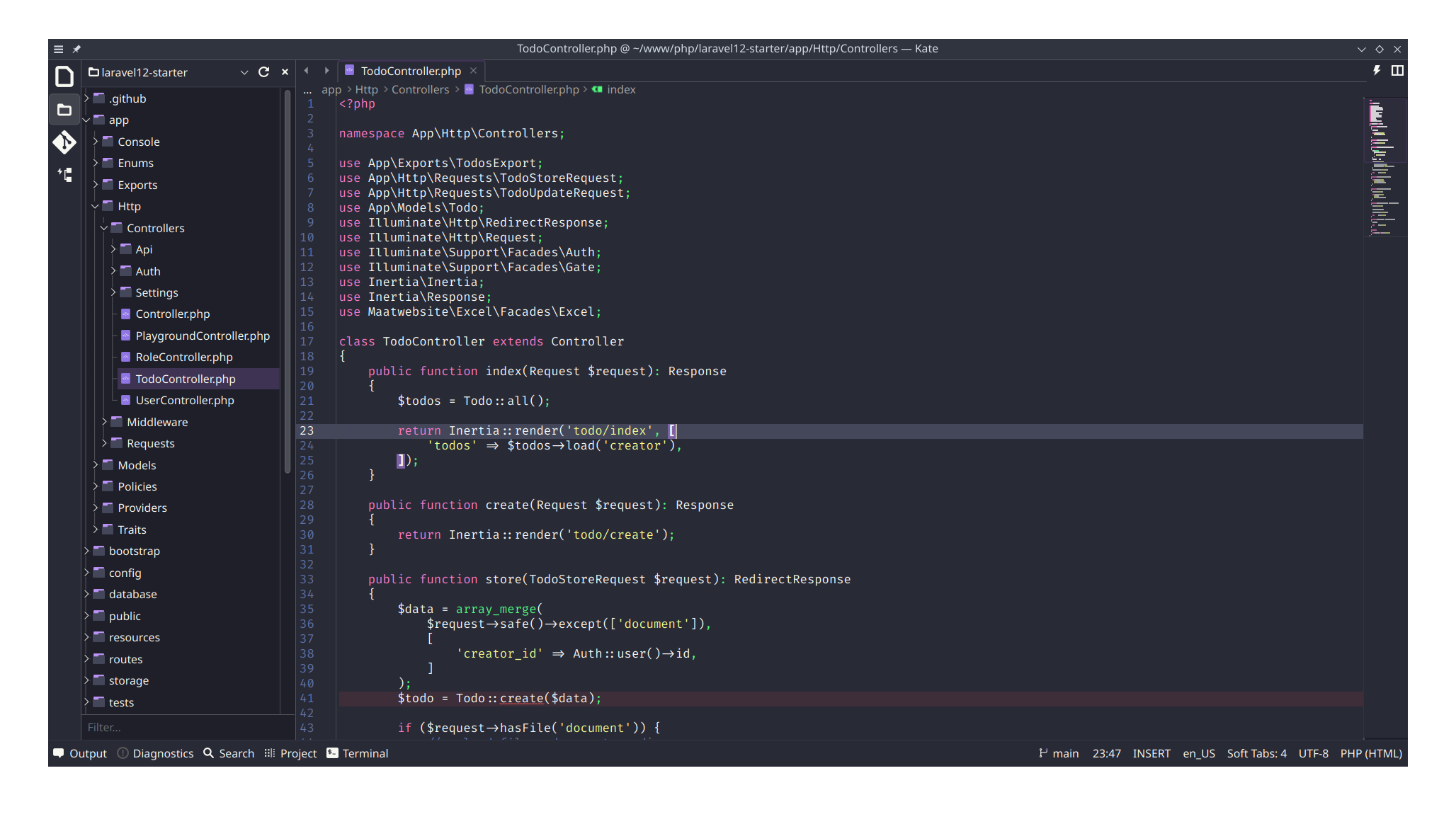
Download and install Kate
- https://kate-editor.org/get-it/
- There are Window and MacOS versions too
Preparation
- Create
.local/binsub-directory under your home directory - Add
$HOME/.local/bin/to your PATH by addingexport PATH="$PATH:$HOME/.local/bin"to .bashrc or .zshrc - Open Kate
- Visit Settings - Kate Configuration
- Update font, color scheme, formatting, editing etc
- Visit Plugins
- Make sure LSP client plugin is checked and turn on

Different LSP Server Installation
- Bash
- install shellcheck
- https://github.com/koalaman/shellcheck
sudo apt install shellcheck- install bash-language-server
- https://github.com/bash-lsp/bash-language-server
- installed via npm
npm i -g bash-language-server - CSS,HTML,JSON
- install vscode-langservers-extracted
- https://github.com/hrsh7th/vscode-langservers-extracted
- install via npm
npm i -g vscode-langservers-extracted - Markdown
- marksman
- https://github.com/artempyanykh/marksman
- download pre-built binary from repo release
mv marksman-linux marksman && chmod +x marksmancp marksman $HOME/.local/bin/- JS/React/Typescript
- typescript-language-server
- https://github.com/typescript-language-server/typescript-language-serverc
- install via npm
npm install -g typescript-language-server typescript - PHP
- phpactor
- https://github.com/phpactor/phpactor
- https://phpactor.readthedocs.io/en/master/usage/standalone.html
curl -Lo phpactor.phar https://github.com/phpactor/phpactor/releases/latest/download/phpactor.pharchmod a+x phpactor.pharmv phpactor.phar ~/.local/bin/phpactor
Upate Kate LSP settings
- Visit Kate Settings - Configure Kate
- LSP Client
- Go to "User Server Settings" tab
- You will see empty settings with Settings File placeholder text
- Create "settings.json" file anywhere you want or follow the placeholder suggestion
- Entered the created file full path in Settings File: field or select the file from Open file dialog button
- Click Apply
- Go to "Default Server Settings" tab
- Copy all languages or desired languages settings
- Go back to "Client Server Settings" tab
- Paste your copied settings json
- You will need to update the "command" attribute for each language with correct value
- Click Apply
- Reboot your computer
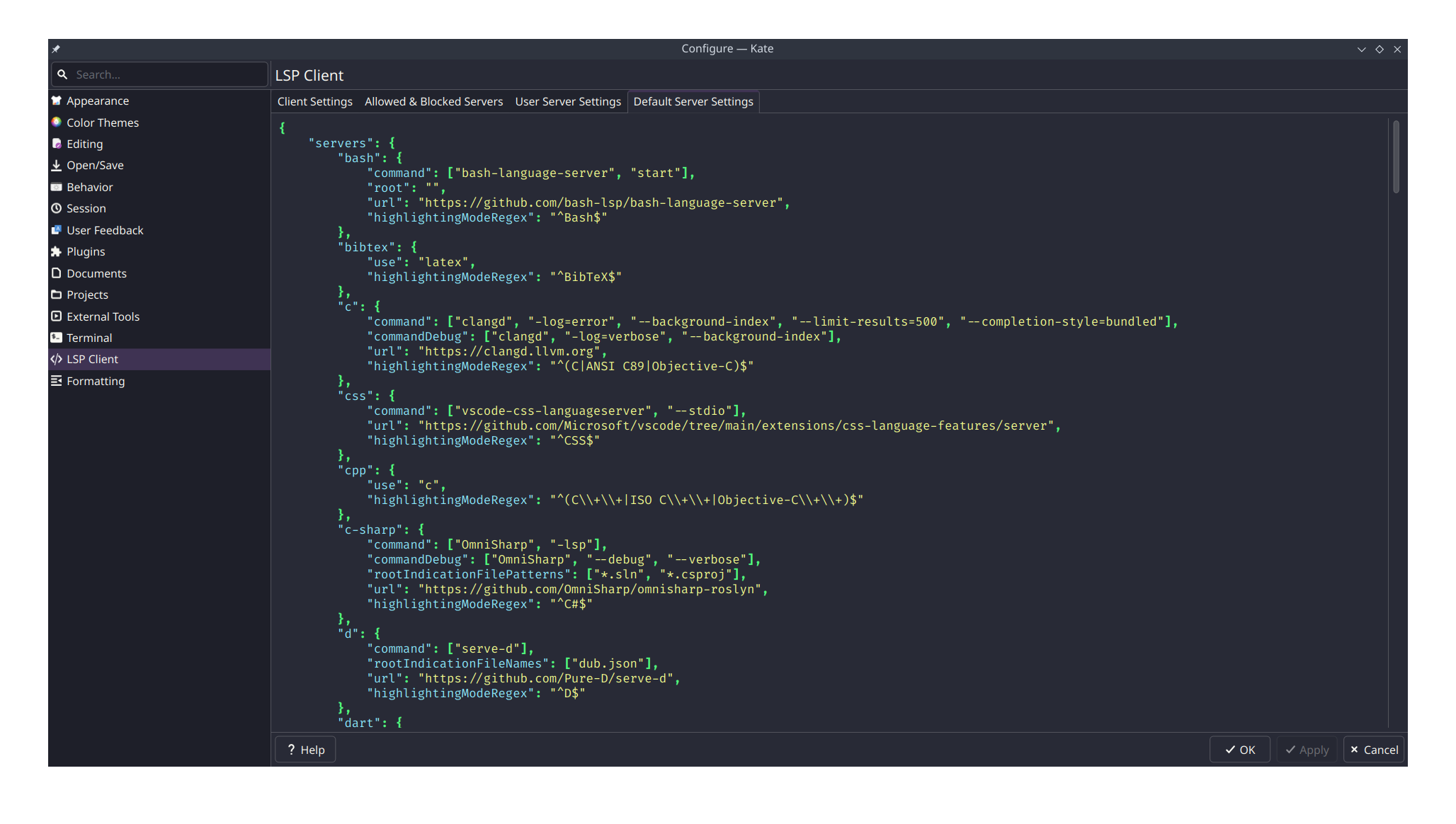
Open a PHP project or React project and right click a keyword (Class name, Component name, etc). You can try to "Go To - Definition" or "LSP Client - Find Implementation".
For Laravel project, you need to install and setup laravel-ide-helper package. You will probably need to do custom configuration to phpactor as well.
You should also read:
2025 Dev Setup - Revised
Debian 13 with KDE Plasma 6 Install base distro Download and install distro iso Download…
Continue reading...2025 Development Setup
OS (POP) cleanup and update sudo apt remove -purge libreoffice* sudo apt autoremove sudo apt…
Continue reading...